Obtaining Models
Models must be trained on the DENKweit Vision AI Hub (https://hub.denkweit.ai) and then exported and downloaded.
Obtaining .denkflow Files (Complete Pipelines)
These files contain full pipeline definitions. This is the recommended method to use this software.
-
Activate Libdenkflow Feature
- Contact DENKweit and ask to activate the "libdenkflow" feature for your account. This replaces legacy integrations ("libdenk", "offline analyzer") but can be reverted anytime.
-
Train / Select Model on Vision AI Hub
- Go to the Vision AI Hub (https://hub.denkweit.ai) and log in.
- Train or select an existing model in your workspace.
-
Request a License
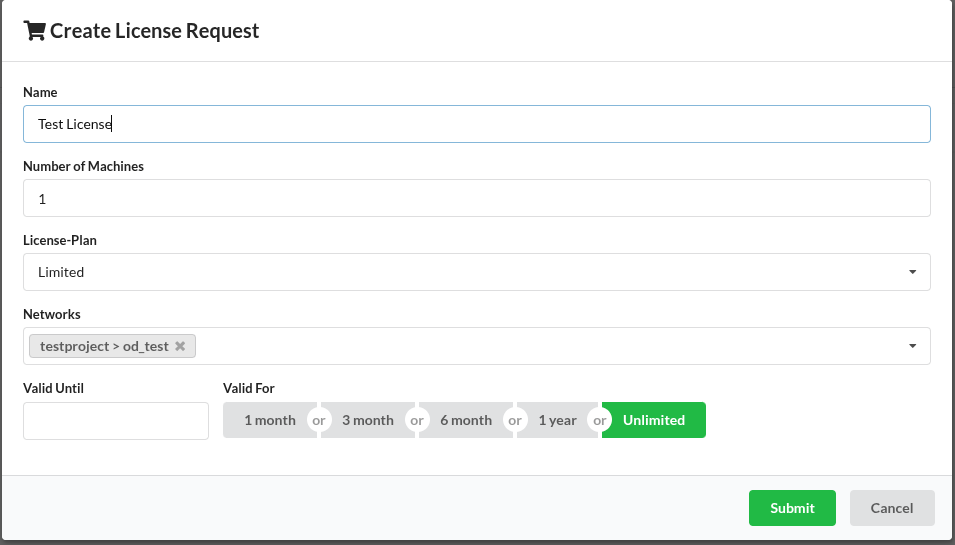
- Go to the Integration Page (https://hub.denkweit.ai/licenses/admin).
- Click
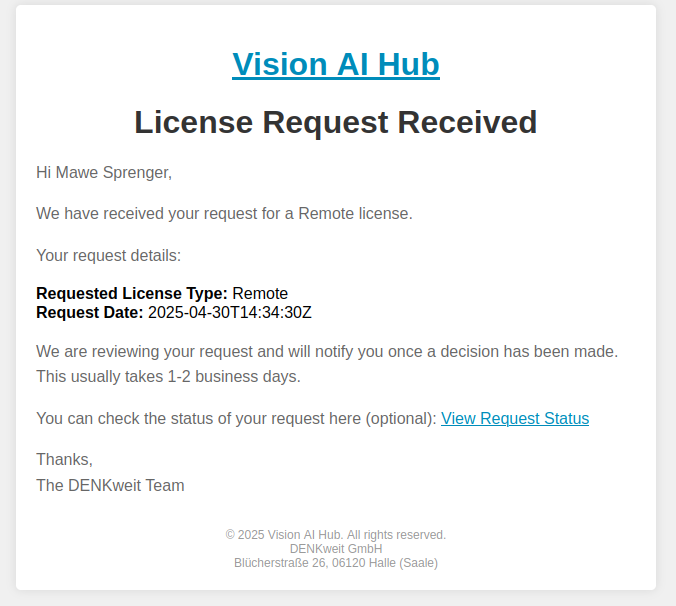
Request License, fill in the details (name, machines, plan, models, duration), and submit. - Wait for DENKweit to approve the license request. You will receive an email when your license request has been approved.
- Your active license will appear under
Licenses.

- Navigate to the "Exports" Tab
- Go to your model's details page.
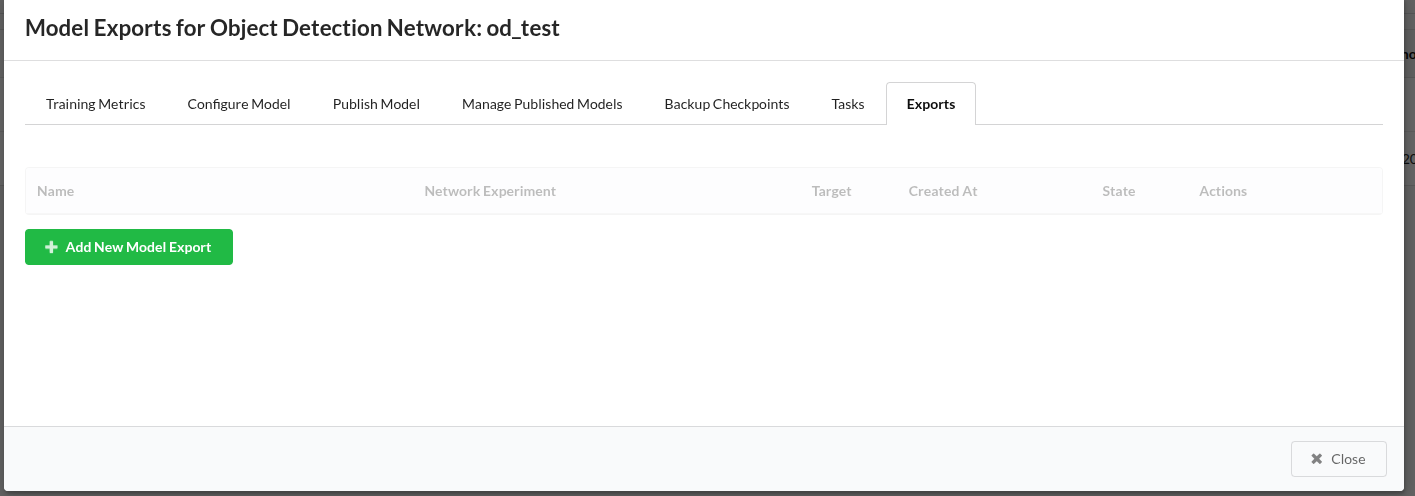
- Click the
Exportstab.
- Create a New Export
- Click
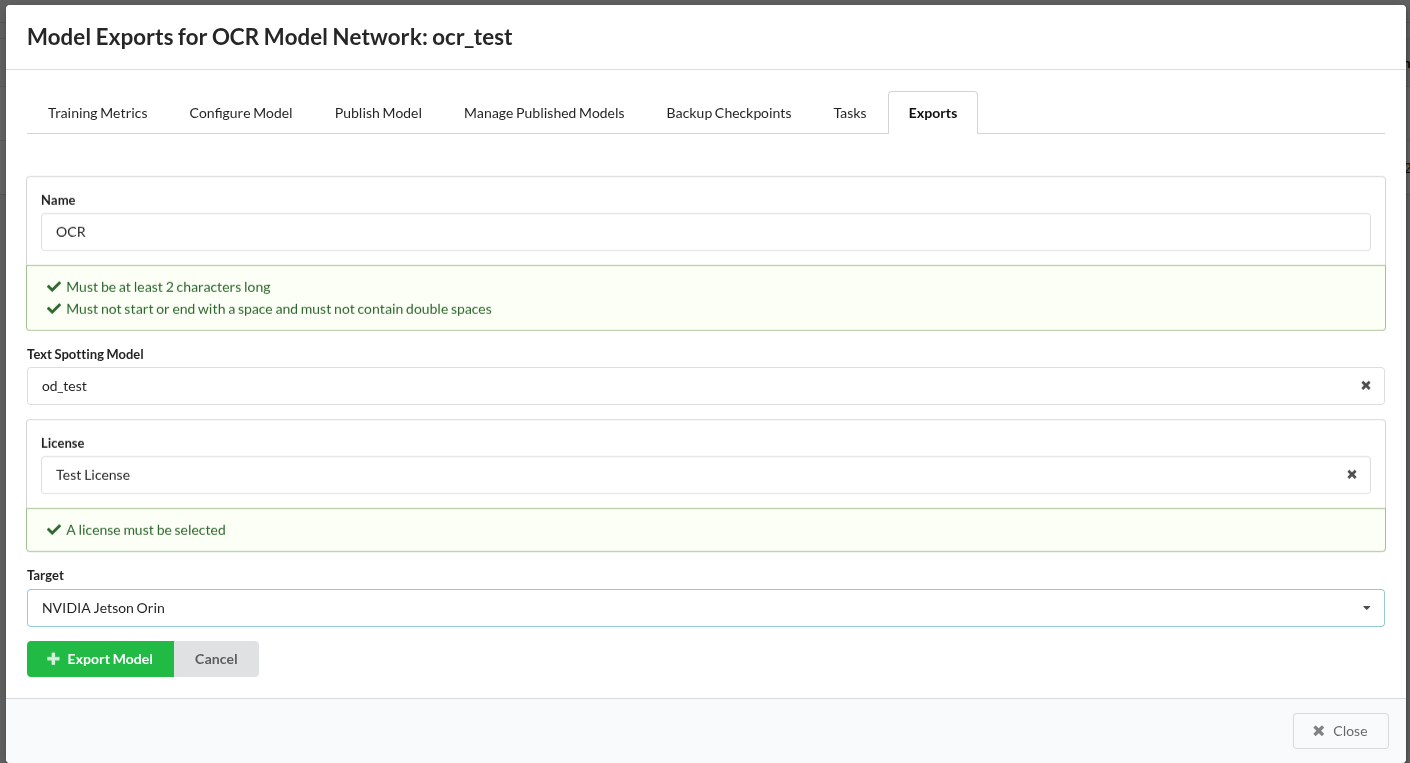
Add New Model Export. - Select applicable options (e.g., a spotting network for OCR, target platform).
- Click
Export Model. Depending on the selected platform, the export can take up to 30 minutes. You will get an e-mail when the exported file is ready for download.
- Click
- Download
.denkflowFile- Download the exported
.denkflowfile from theExportstab.
- Download the exported
Obtaining .denkmodel Files (Individual AI Models)
These files contain single AI models for use in custom pipelines.
Note: Currently, this download provides only non-quantized models.
- Navigate to Network Details
- Go to your model's details page on the Vision AI Hub.
- Download
.denkmodelfile- Click to
Download Networkbutton to download the.denkmodelfile.
- Click to
